



Key takeaways:
- Tracing apps support drawing practice by letting artists follow reference images to study proportions, shapes, and line placement.
- Tracing apps use different methods, including augmented reality overlays, digital lightbox screens, and AI-generated references.
- Mobile tracing apps let you practice drawing anywhere using a phone or tablet without needing a full set of art supplies.
- Many tracing apps offer free access, with optional paid features such as additional tools, lessons, or advanced capabilities.
Tracing apps overlay reference images onto a screen or surface, allowing you to follow outlines while practicing observation and hand coordination. They help improve drawing accuracy, proportion, and line control, and teach artists to build an understanding of how shapes and structures fit together. For many learners, it bridges the gap between copying an image and drawing freehand.
Many artists start developing digital skills early. Research finds 43.4% of digital artists began creating at or before age 15. Early access to creative tools helps build long-term creative habits. Tracing apps support this process by giving kids a structured way to practice drawing while building confidence with digital drawing apps.
In this guide, we’ll explore the best tracing apps for drawing and illustration. These tools help kids practice drawing while still offering features for more experienced artists.
What are tracing apps?
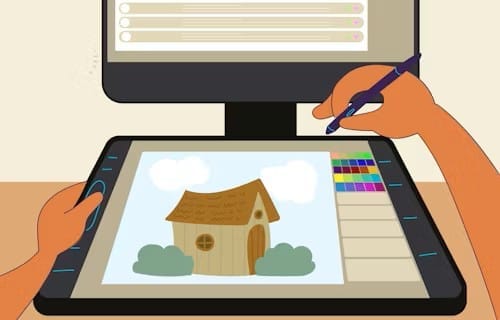
Tracing apps are digital tools that help artists follow reference images while drawing. These apps place a semi-transparent image over a canvas, camera view, or screen so users can trace outlines, study proportions, and recreate shapes with greater accuracy. Many apps also let users adjust opacity, lock reference layers, or project images onto paper using a device camera.
Artists often use tracing apps to practice sketching, plan compositions, or study complex forms. They work well for kids learning basic drawing skills and for illustrators who want to refine proportions or line placement.
Benefits of tracing apps
Tracing apps offer several advantages for people who want a more guided way to practice drawing. Visual references and interactive tools make drawing practice easier to get started and to continue. Key benefits include:
- Learning how to draw: Step-by-step visual guides break drawings into simple shapes and lines. This helps you understand proportions, structure, and how elements fit together. It also supports practice with fundamental techniques while improving accuracy and confidence.
- Developing drawing style: Access to different reference images and illustrations exposes artists to new techniques, line styles, and compositions. Experimenting with these references helps refine their approach and build a more consistent drawing style.
- Tracing and drawing anywhere: Mobile apps let kids trace references and practice sketches on a phone or tablet. They can draw at home, in class, or while traveling without having to carry a full set of art supplies.
Best tracing apps
Choosing the best tracing apps means looking beyond simple tracing features. For this list, we evaluated apps based on ease of use, tracing accuracy, drawing tools, and support for both beginners and more experienced artists. We also considered platform availability, customization options, and overall usability to identify apps that make tracing and sketch practice more effective.
1. Aqua by Adobe
Aqua by Adobe is a tracing and drawing app and website designed for kids and families who want a safe space to explore digital art. Created by parents at Adobe for children aged 5–12, the app turns drawing into a playful experience where kids can experiment with sketching, tracing, and illustration.
The app introduces tracing through guided lessons like Tracing Topics, where kids follow artist-inspired examples to learn shapes, lines, and styles step by step. Instead of relying only on static overlays, these lessons help kids understand how drawings are built, making it easier to move from tracing to independent drawing.
It also includes Capture Cove, a feature that lets children scan paper drawings and turn them into digital artwork they can edit, remix, and store in their own digital museum. Kids can build on their drawings, explore different styles, and revisit their work as they improve.
Features:
- Capture Cove: Lets kids scan paper drawings and turn them into digital artwork they can edit, remix, and store in their personal gallery.
- 3D and augmented reality tools: Transforms flat drawings into three-dimensional creations that kids can explore and move in AR.
- Personal art museum: Stores completed drawings in a digital gallery where kids can revisit and showcase their artwork.
- Ad-free and family-safe: Provides a completely free experience with no ads or in-app purchases, giving parents peace of mind.
- Creative challenges and art games: Encourages kids to practice drawing through interactive activities and collaborative pass-and-play games.
Price: Free

2. Tracing Projector
Tracing Projector is a tracing app that lets you overlay an image on your phone screen while drawing on paper. After selecting a photo or illustration, you position your device above the drawing surface and follow the image displayed on the screen as you trace.
The app includes several drawing modes, including tripod, handheld AR on supported devices, and light table for tracing directly on the screen. Users can import photos, trace built-in line art, and adjust tools such as opacity, grids, and filters while drawing. Tracing Projector also provides access to line art drawings that can be used as tracing references.
Features:
- Image import: Lets users choose a photo, take a new picture, or select images from their camera roll to trace.
- AR tracing mode: Uses augmented reality to keep the tracing image aligned with the drawing surface on supported devices.
- Light table mode: Displays the image on a bright screen so users can trace directly on the device.
- Built-in drawing library: Includes line art drawings that can be used as tracing references.
Price:
- Free
- Pro bundle: $4.99
- Full functionality: $3.99
- High-quality video: $2.99

3. Tracer! Lightbox tracing app
Tracer! The Lightbox tracing app turns your phone or tablet into a digital lightbox for drawing and illustration. Users place tracing paper over the screen and copy reference images directly. Images can be imported from device storage, taken with the camera, or searched online.
The app includes tools to adjust image contrast and controls to pan, rotate, and zoom reference images while tracing. It can be used for activities such as stencil creation, font tracing, tattoo design outlines, animation frames, and drawing practice.
Features:
- Image search and import: Lets users search the internet, import images from device storage, or take photos with the camera to use as tracing references.
- Digital lightbox screen: Uses a bright screen with adjustable brightness so users can place tracing paper over the device and copy the image.
- Image controls: Allows users to pan, rotate, and zoom reference images while tracing.
- Contrast adjustment: Includes grayscale color adjustment to improve image contrast for tracing.
Price: Free
4. Draw Easy AI: AR Trace Sketch
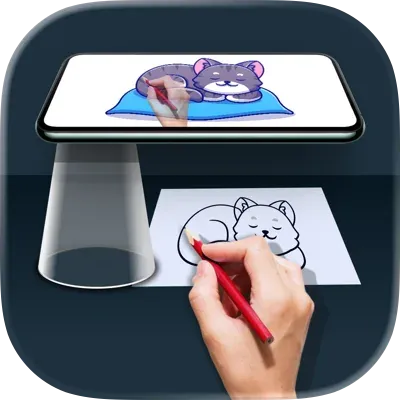
Draw Easy AI: AR Trace Sketch is a tracing app that uses augmented reality to display reference images on your screen while you draw on paper. After selecting or generating an image, users position their phone above the drawing surface and follow the outlines shown through the camera view. The app supports photo imports and AI-generated images for tracing references.
The app also includes tools to adjust the image while tracing, such as zooming, rotating, and repositioning the reference on the screen. These controls allow users to align the image with their drawing surface and trace shapes, outlines, and details as they sketch.
Features:
- AR tracing overlay: Displays a reference image through the camera so users can trace it while drawing on paper.
- AI image generation: Creates images that can be used as tracing references.
- Image import: Allows users to upload photos from device storage to trace.
- Image controls: Provides tools for zooming, rotating, and repositioning reference images while tracing.
Price: Free with optional in-app purchases

5. PicTrace: AR Drawing & Sketch
PicTrace: AR Drawing & Sketch is an augmented reality tracing app designed for users who want to practice drawing using reference images. The app lets you turn photos or sample images into outlines that can be traced directly while viewing them through the camera. This AR overlay allows users to follow the lines on their drawing surface as they sketch.
The app also includes tools that convert photos into sketch outlines and provide drawing templates for practice. Users can import images from their camera or gallery, record their drawing sessions, and save or share finished sketches once the tracing is complete.
Features:
- AR drawing with camera: Displays reference images through the camera so users can trace them on a drawing surface.
- Photo to sketch conversion: Turns photos into outline sketches that can be used for tracing.
- Sketch templates: Provides templates for drawing animals, vehicles, and other subjects.
- Image import: Allows users to upload photos from the camera or device gallery.
Price: Free with optional in-app purchases

6. Sketchar
Sketchar is an AR-powered drawing app that projects virtual images onto real surfaces through your device’s camera. The app overlays reference images on paper, walls, fabric, or other surfaces so users can follow the outlines while drawing.
The platform also includes tools that support drawing practice, including drawing lessons on topics such as portraits, anime, animals, and landscapes. It also features a digital canvas with brushes, layers, and stroke smoothing, as well as a community where users can share artwork and join drawing challenges.
Features:
- AR image projection: Displays reference images on real surfaces through the device camera for tracing.
- Drawing lessons: Provides access to guided lessons across multiple drawing topics.
- Digital canvas: Includes tools such as brushes, layers, and stroke smoothing for creating artwork.
- Art community: Enables users to share artwork, build profiles, and join drawing challenges.
Price:
- 1-Week subscription: $7.99 / Week
- 1-Month subscription: $14.99 / Month
- 1-Year subscription with 3-day trial: $69.99 / Year
- 1-Year special offer subscription: $34.99 / Year
What features to look for in a tracing app
The best tracing apps do more than place an image on a screen. They make practice easier, keep the process intuitive, and give you enough control to trace accurately without slowing you down. If you’re comparing options, these are the features worth paying attention to.
- Clear image overlay: A good tracing app should let you place a reference image over your drawing surface so it stays visible and easy to follow. The overlay should look clean rather than cluttered, especially when you’re tracing fine lines or small details.
- Opacity controls: Adjustable opacity helps you make the reference image lighter or darker, depending on what you’re drawing. This gives you more control over visibility and makes it easier to trace without the image overpowering your view.
- Stable positioning tools: The app should help keep the image in place while you draw. Features like screen lock, anchor points, or steady AR placement make tracing more accurate and reduce the need to keep repositioning the reference.
- Image import options: Many of the best apps let you upload your own photos, artwork, or screenshots. This gives you more flexibility and personalization, making the app useful for tracing everything from simple sketches to more detailed reference images.
- Zoom and rotation controls: Being able to zoom in, rotate the image, and reposition it on screen helps you work more precisely. These tools are especially useful when you need to trace small details or fit a reference to a certain page size.
- Photo-to-outline conversion: Some tracing apps can turn photos into simplified line art or sketch outlines. This feature can save time and make it easier to trace detailed images, especially for beginners or kids.
- AR tracing mode: Augmented reality tracing can project a reference image onto paper through your device’s camera view. This feature works well for users who want to trace on physical paper instead of directly on a screen.
- Lightbox mode: A digital lightbox mode turns your phone or tablet into a bright tracing surface. This is useful if you want to place paper over the screen and trace by hand without using AR.
- Built-in templates or lessons: Some apps include sample drawings, guided tracing exercises, or step-by-step lessons. These features can make the app more useful for kids, beginners, or anyone who wants more structure during practice.
- Simple interface: The app should be easy to navigate from the start. Clean menus, clear tool labels, and an uncluttered layout make a big difference, especially for younger users.
- Kid-safe design: If the app is for children, look for features like an ad-free experience, no in-app purchases, and limited sharing options. These details help create a safer and less distracting environment.
- Device compatibility: Check whether the app works well on your phone or tablet and whether key features are available on your operating system. Some tracing tools work differently on iOS and Android, especially when AR is involved.
- Free version or trial access: A free version or trial makes it easier to test the app before paying for extra features. This helps you see whether the tracing tools are actually useful for your child’s skill level and drawing style.
Get your art started with the best tracing app
Getting started with digital drawing is easier when you have tools that encourage experimentation and creativity. The best tracing apps help you move from rough ideas to clearer sketches by giving you ways to work with references, explore shapes, and practice drawing more interactively. As you experiment with different tools and styles, tracing apps can help turn early sketches into more confident illustrations.
If you're looking for a platform that takes tracing and creative exploration even further, Aqua by Adobe introduces drawing in a playful and interactive environment for kids aged 5–12. Built as a creative playground, it turns digital art into an interactive adventure where children can explore creativity while developing drawing skills. By blending playful exploration with creative technology, Aqua by Adobe helps young artists move beyond basic tracing and discover new ways to create, experiment, and build confidence in their artistic abilities.
Try Aqua by Adobe for free today.
Tracing app resources
What is a good app for tracing?
A good tracing app makes it easy to follow reference images while practicing drawing at your own pace. Look for tools that clearly display outlines, allow experimentation, and keep the process engaging without feeling overwhelming. These features are especially helpful for kids who are still building confidence in their drawing skills.
Aqua by Adobe offers a playful environment where kids can explore drawing, experiment with ideas, and build confidence in their creativity.
How to trace a picture without the screen moving?
To trace a picture without the screen moving, keep your device stable while you draw. Place your phone or tablet on a stand, tripod, or stack of books so the screen stays fixed above the paper. You can also lower the screen brightness and lock the display to prevent accidental movement. Once the device is secure, focus on following the outlines and tracing the image accurately.
Is there a free digital tracing art app?
Yes, there are free digital tracing art apps available. Many mobile apps let you upload a photo or choose a template and trace it using your phone’s screen or camera view. Some apps let you place your phone above your paper and follow a projected outline while you draw. This setup helps you practice proportions and line work as you recreate the image.
What are tracing apps used for?
Tracing apps help you practice drawing by following reference images. You can use them to learn proportions, improve line control, and understand how shapes fit together. Many artists use tracing apps to break down complex subjects into simpler forms before drawing freehand.
They also support planning and sketching. You can map out compositions, test ideas, or trace outlines before adding details. Some apps convert photos into line art, which makes it easier to study real objects and scenes.
Tracing apps work well for creative exploration too. You can experiment with styles, try new subjects, and build confidence as you draw. For kids, they offer a simple way to start drawing without feeling overwhelmed.
What age are tracing apps best for?
Tracing apps work well for a wide range of ages. Kids as young as 5 can use simple apps with guided outlines and basic tools to start learning how to draw. These apps help build confidence by breaking drawings into easy steps.
Older kids and teens can use tracing apps to improve technique, explore different styles, and practice more detailed drawings. Many apps include features like layers, image controls, and reference tools that support more advanced learning.
Adults can also use tracing apps to refine skills, plan compositions, or study complex subjects. Whether you’re just starting out or improving existing skills, tracing apps adapt to different experience levels and creative goals.
Are tracing apps safe for kids?
Tracing apps can be safe for kids when they’re designed with age-appropriate features and controls. Look for apps that offer a simple interface, clear instructions, and content suited for younger users. Apps without ads or in-app purchases help create a more focused and distraction-free experience.
Parental controls and privacy settings also matter. Some apps limit external sharing, restrict data collection, or provide closed environments where kids can create without interacting with strangers. These features help keep the experience safe and manageable.
Aqua by Adobe is designed with kids in mind, offering an ad-free environment where they can draw, explore, and save their work in a private digital space. It gives kids a safe place to build skills and experiment creatively.