



Key takeaways:
- 3D drawing apps let users create artwork with depth, allowing them to rotate, explore, and interact with their creations from different angles.
- Some apps focus on transforming simple 2D drawings into 3D objects, while others offer advanced modeling tools for building detailed designs.
- Many 3D drawing apps work on everyday devices like tablets and phones, making them easy for kids to start using without special equipment.
- The best app depends on your goal, whether it’s playful exploration, learning design basics, or creating more complex 3D models.
Creative exploration plays an important role in child development. As Abbey Tharpe, a children’s activity program thought leader from the University of Florida, explains: “As a child grows it is important that they start making choices. However, when they are small, we need to, as adults, make sure these choices are safe and appropriate. Allowing them to be creative in their art is a great way of giving them the space to be independent and control a situation that is safe for them.”
A well-designed 3D drawing app can provide exactly that: structured tools within a safe digital environment where kids can experiment freely. Kids gain a new way to explore depth, space, and perspective in their artwork. Instead of drawing on a flat canvas, they can experiment with dimension, movement, and even place their creations into the world around them.
Today’s 3D drawing apps for kids range from beginner-friendly tools that transform 2D sketches into dimensional objects to more advanced platforms used for modeling, animation, and design. This guide breaks down the best apps across skill levels so you can find the right tool for multi-dimensional play.
What is a 3D drawing app?
A 3D drawing app is a digital tool that allows artwork to have visible depth instead of staying flat on a screen. In a regular drawing app, a picture exists on a single surface, like a digital sheet of paper. In a 3D drawing app, shapes and objects can appear raised, layered, or positioned within a live scene so they feel more like real, physical forms than simple lines or colors.
For example, a character drawn in a standard app might stay fixed in one 2D view. In a 3D drawing app, that same character could be turned to see its side, placed inside a virtual environment, or appear to sit on a table in your home when viewed through a device camera. Some apps create this effect by transforming flat drawings into dimensional objects automatically, while others let users build structures piece by piece using modeling tools.
This technology changes how people interact with their artwork. Instead of only focusing on outlines and color, users begin thinking about space, positioning, and perspective. That shift makes 3D drawing apps feel more immersive than traditional digital sketching tools.
Best 3D drawing apps
To choose the best 3D drawing apps, we compared how each tool lets users interact with dimensions. Some apps allow you to draw directly in a 3D space, rotating and zooming around your artwork. Others focus on transforming flat drawings into simple dimensional objects or placing creations into real-world environments using augmented reality.
We also looked at how quickly someone can begin using the app. For younger users and beginners, simple controls and automatic transformations can make the experience feel more approachable. More advanced tools, on the other hand, may require building structured models or learning how to manipulate shapes and surfaces.
1. Aqua by Adobe
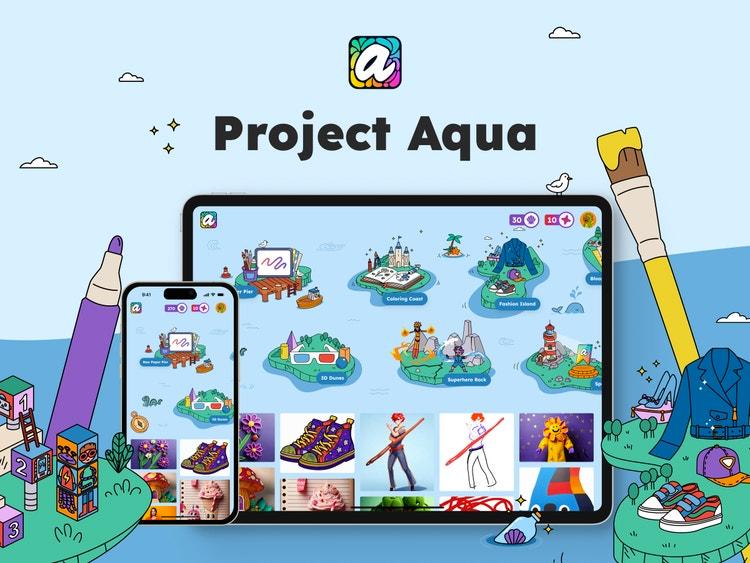
Aqua by Adobe approaches 3D creativity from a beginner-friendly angle. Instead of requiring users to build complex models from scratch, it allows kids to start with familiar 2D drawings and transform them into 3D objects.
With its 3D Dunes feature, children can turn flat artwork into simple 3D forms and view them from different angles. The app also includes augmented reality tools that let kids place their creations into real-world environments using the device camera. This makes depth and perspective feel interactive rather than technical.
In addition to its 3D features, Aqua by Adobe includes drawing tools, printable coloring pages, background scenes, and creative challenges that help kids get started without staring at a blank screen.
Best for: Introducing kids to 3D creativity through simple 2D-to-3D transformation and augmented reality exploration
Pricing: Free
2. Adobe Fresco

Adobe Fresco is a professional drawing and painting app designed for illustrators who want powerful tools on a mobile device. While it’s not a traditional 3D modeling platform, it allows artists to create artwork with depth and dimension through advanced brushes, layering, and animation features.
Fresco includes thousands of raster, vector, and live brushes that blend and behave like real paint. Artists can build detailed compositions using unlimited layers and blend modes, creating shading, lighting, and perspective effects that give drawings a multi-dimensional feel. The app also supports simple animation tools, allowing users to add motion and movement to their illustrations.
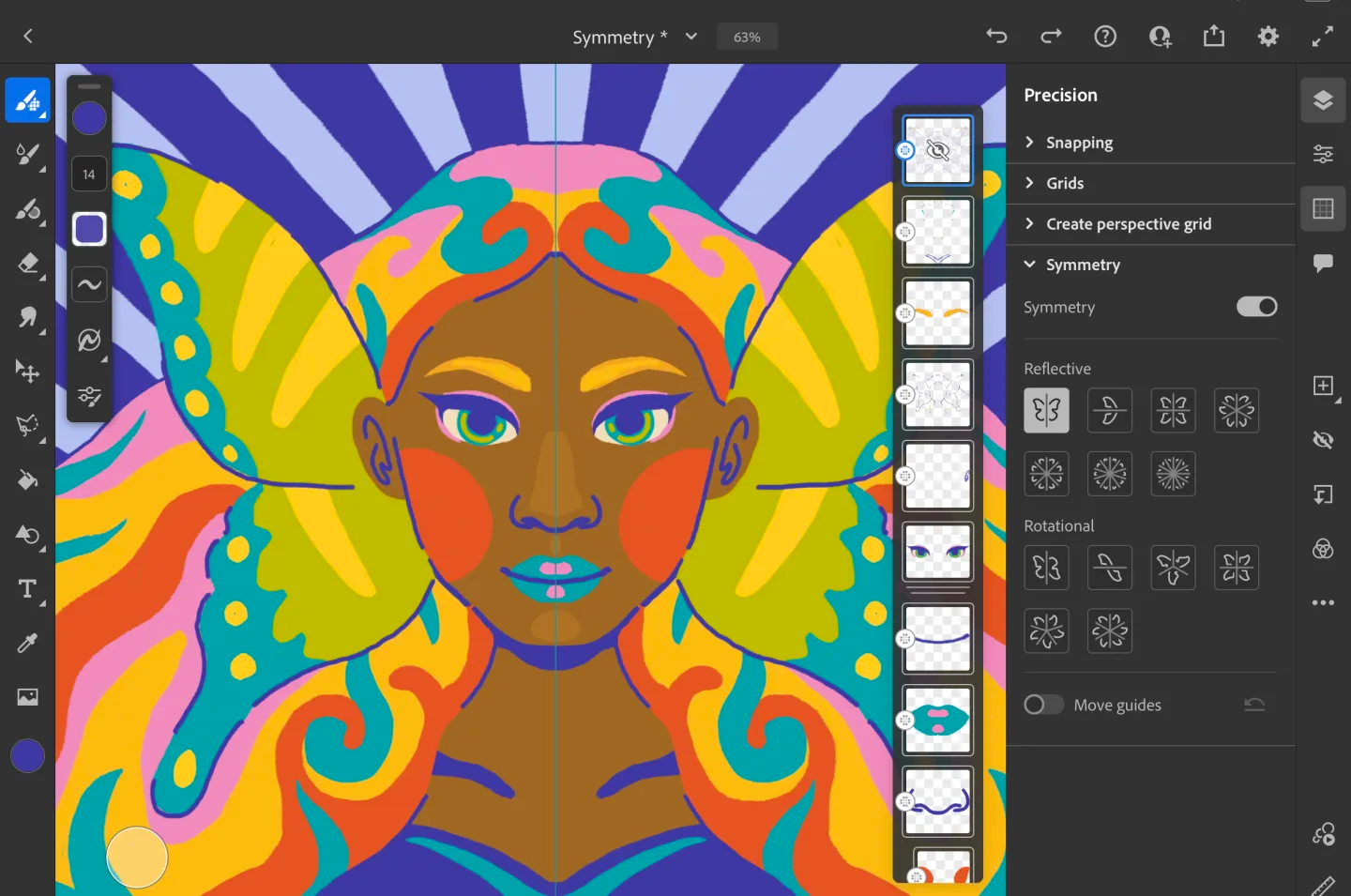
Best for: Illustrators who want to create depth, dimension, and light animation using professional drawing tools
Pricing: Free
3. Feather

Feather is a 3D drawing app that allows users to draw within a navigable 3D environment where they can rotate, zoom, and view their artwork from any angle. The app allows creators to move through space freely, using pressure-sensitive 3D brushes to draw lines that exist in depth rather than on a single plane. Tools like joystick-based editing make it easier to move, rotate, and scale elements, while the 3D Liquify feature lets users push and pull parts of their design for more expressive results.
Lighting controls, shading options, and post-processing effects help add visual depth, and finished projects can be exported in 3D formats for use in other programs. Feather also includes AR viewing, allowing creators to place their 3D drawings into real-world environments.
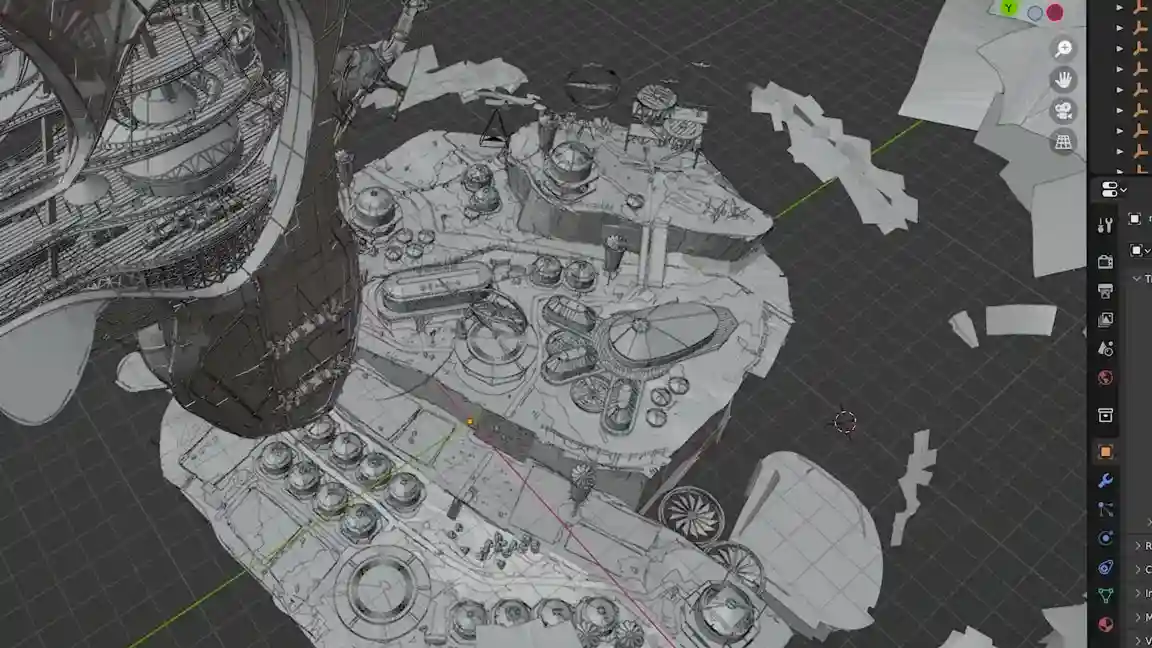
Best for: Artists who want to draw directly in 3D space and manipulate forms from every angle
Pricing: $14.99
4. Figuro
Figuro is a browser-based 3D modeling tool for building structured objects directly in three-dimensional space. It focuses on constructing models using geometric forms and editable mesh tools.
Users can shape, extrude, and refine objects by manipulating vertices, edges, and surfaces. The interface runs entirely in the browser, which means there’s no installation required, and projects can be accessed from multiple devices. Figuro supports exporting models for use in other 3D workflows, making it suitable for creators who want to move into game design, product prototyping, or digital modeling.
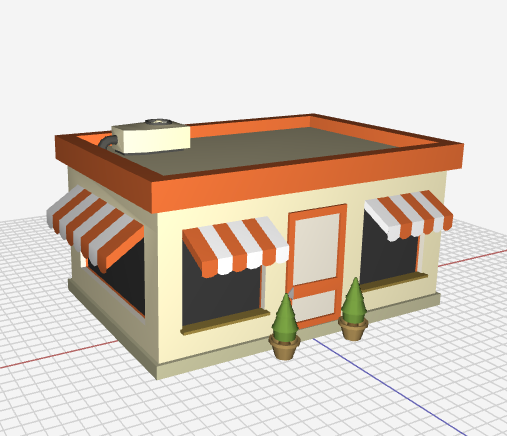
Best for: Beginners who want to learn 3D modeling and object construction
Pricing: Free with in-app purchases
SketchUp

SketchUp is a 3D modeling platform used for architectural design, interior planning, and structural visualization. Rather than focusing on sketch-style drawing, SketchUp allows users to construct detailed models using precise measurements, shapes, and scalable components.
Creators build objects by drawing lines and shapes that automatically form surfaces and volumes. Tools for push/pull extrusion, scaling, and grouping make it possible to design everything from simple room layouts to complex buildings. SketchUp also includes a library of pre-built 3D assets, allowing users to insert furniture, fixtures, and other objects into their designs.
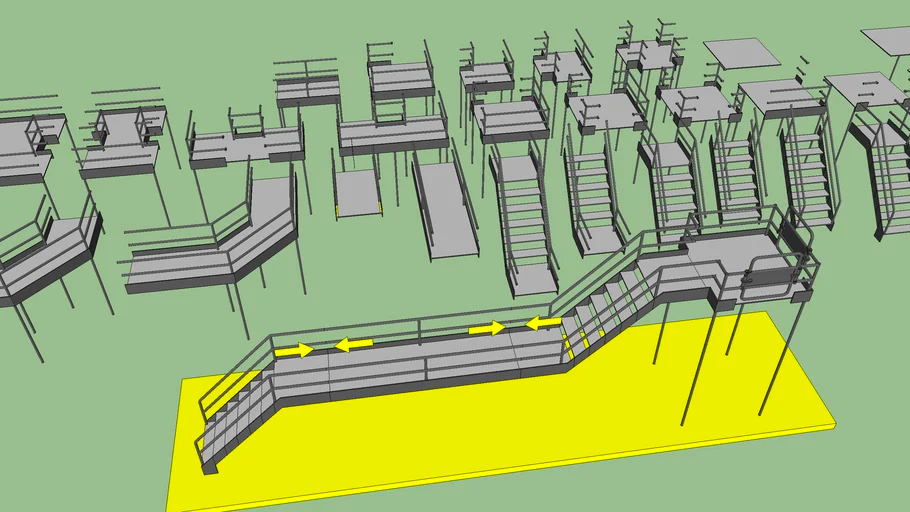
Best for: Architectural design, interior planning, and structured 3D modeling projects
Pricing:
- Go: $19.99/mo
- Pro: $99.99/mo
Explore your designs from every angle with 3D drawing apps
3D drawing apps open up new ways to think about creativity. Whether you’re building detailed models, sketching with depth and motion, or experimenting with perspective for the first time, these tools expand what’s possible beyond a flat screen. The right choice depends on whether you prefer structured modeling for design projects or playful dimensional exploration for learning and creative growth.
If you’re introducing a child to 3D concepts, Aqua by Adobe offers the most approachable starting point. Kids can begin with hand drawings, then use built-in tools to turn them into dimensional objects they can rotate, zoom, and explore from different angles. Features like 3D Dunes make it easy to transform flat artwork into 3D forms, while augmented reality allows creations to be placed into real-world environments using a device camera.
Together, these tools help kids understand depth and perspective through hands-on interaction, all within a safe, free environment designed for families.
3D drawing app resources
What is the best free 3D drawing app?
The best free 3D drawing app depends on what you’re trying to create. If your goal is creative exploration for kids, look for apps that turn 2D drawings into simple 3D objects or let kids place their creations into real-world environments using augmented reality.
For families, that app would be Aqua by Adobe. It combines easy drawing tools with the ability to transform artwork into dimensional objects and explore them in 3D. It’s completely free, ad-free, and designed specifically for children.
Can I use a 3D drawing app on my phone?
Yes, many 3D drawing apps work on phones and tablets. Some apps are built specifically for touchscreens and stylus use, while others are desktop-based and require a larger screen for more detailed modeling work.
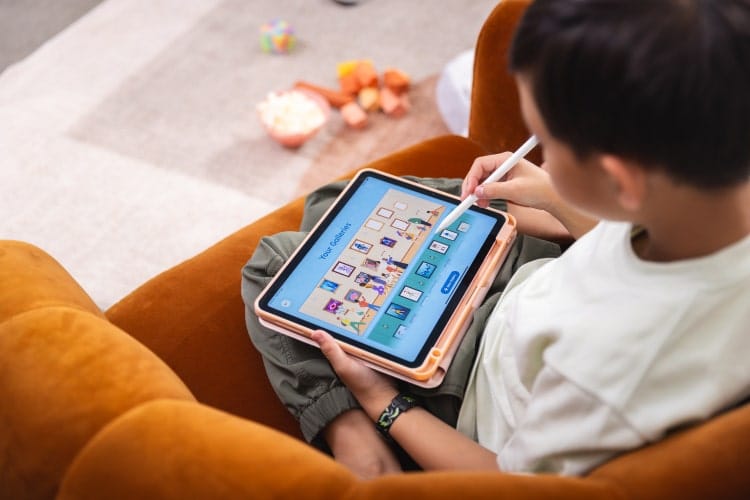
For mobile users, the best experience usually comes from apps designed with touch gestures in mind. Aqua by Adobe, for example, allows kids to draw directly on a tablet or phone and then explore their creations in 3D or through augmented reality using the device camera. This makes it possible to experiment with dimensions without needing a computer.
How can I turn a drawing into a 3D image?
There are two common ways to turn a drawing into a 3D image. You can build shapes and forms manually using modeling tools. Alternativey, you can use an app with built-in features that automatically convert a 2D drawing into a dimensional version you can rotate or place into a scene.
For beginners and children, apps that offer automatic 2D-to-3D transformation are often the best place to start. In Aqua by Adobe, kids can create a drawing and then use built-in features to view it as a 3D object or place it into their real-world environment using augmented reality. This introduces depth and perspective in a way that feels playful rather than technical.
What’s the difference between 3D drawing apps and regular drawing apps?
3D drawing apps change how artwork can be experienced after it’s created. In a regular drawing app, a finished picture stays in one fixed view, like a digital page with minimal controls like scroll or zoom. In a 3D drawing app, drawings may be explored from multiple viewpoints, placed inside scenes, or adjusted in ways that make them feel more connected to space and movement.
This often means users spend more time thinking about how elements relate to each other, such as how big something should be, where it should sit in a scene, or how it might look from another angle. Regular drawing apps tend to focus more on linework, color, and composition, while 3D tools introduce additional creative decisions around positioning and depth.
Are 3D drawing apps good for kids?
Yes, many 3D drawing apps can be a good fit for kids when they are designed with simple controls and built to spark creativity. Instead of expecting children to build complex models, beginner-friendly 3D apps often introduce dimension through guided activities or interactive scenes that make experimentation feel natural.
For some kids, this added sense of movement or space can make drawing more engaging than working on a flat canvas alone. It can also encourage longer creative play because drawings feel like something they can continue exploring rather than leaving it behind once the initial piece is done. As with any digital tool, the best experience usually comes from choosing an app that matches the child’s age and attention span.
Do kids need special devices for 3D drawing apps?
In many cases, kids can use 3D drawing apps on the same tablets or phones they already use for games or videos. Some apps are built specifically for touchscreens, making it easy to draw with a finger and explore creations without additional equipment. A stylus can sometimes make drawing feel more precise, but it’s not always required to get started.
More advanced 3D modeling tools may run better on larger screens or computers with stronger performance. However, beginner-focused apps often prioritize accessibility, allowing kids to experiment with dimensional creativity on everyday devices at home or on the go.