




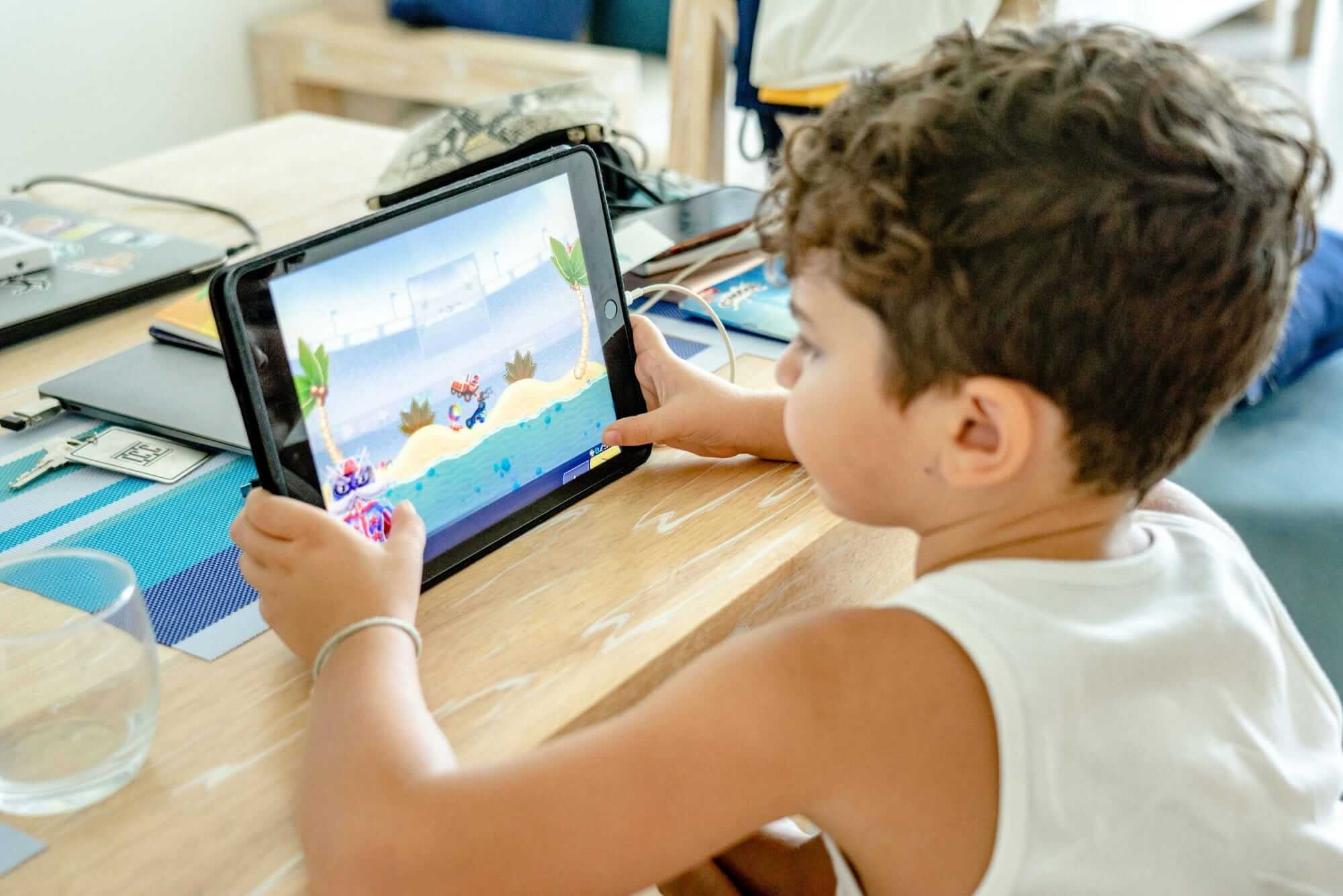
Screens are a big part of how kids learn, play, and explore today, but not all screen time is created equal. When used thoughtfully, the right free design app can turn a device into a space for creativity, imagination, and skill-building. Instead of passive scrolling, kids can draw, design, and tell their own stories in ways that feel engaging and hands-on.
That matters more than ever. Creative play is closely tied to problem-solving, confidence, and emotional growth. It’s even linked to stress and anxiety reduction, with 46% of Americans engaging in creative activities with just those goals in mind. While many families are mindful of how much time kids spend on devices, the focus is increasingly shifting toward the quality of that time, choosing activities that encourage active thinking and self-expression.
That’s where design apps come in. The right app built specifically for younger audiences will blend creativity, play, and skill development into one experience. In this guide, we’ll walk through the best free design apps available today and what makes each one unique.
Whether you’re supporting a budding artist or simply looking for more creative ways for your child to spend their time, these tools can help encourage exploration, creativity, and confidence.
What to look for in the best free design apps
The best free design apps for kids balance creativity, ease of use, and safety. Look for platforms with simple, intuitive interfaces that get kids creating fast without having to wade through elements meant only for professionals.
Free drawing pages and customizable options are great features in an app, as they encourage experimentation and help kids build artistic confidence. It’s also important to choose apps that match your child’s age and skill level. Young kids might need much more engagement and prompting from the app, and older kids may enjoy more advanced tools, particularly if they have a strong interest or skill in design.
Best free design apps
Finding the right free design app can feel overwhelming in a market flooded with options. For this list, we evaluated the options based on ease of use, creative flexibility, and safety, keeping kids in mind first and foremost. The apps below stand out for their ability to inspire creativity, whether your child is just beginning their artistic journey or is ready to explore more advanced design tools.
1.Aqua by Adobe
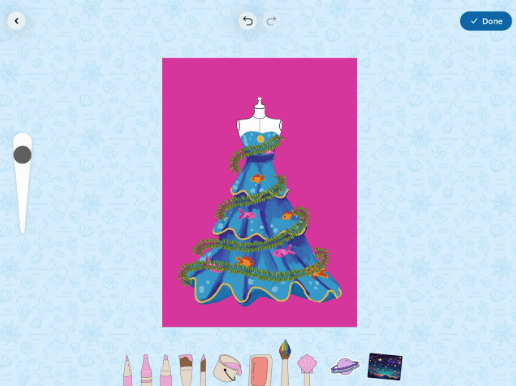
Aqua by Adobe is geared toward kids aged 5-12 to engage them in creative play in a safe digital environment. Budding designers can head to Fashion Island to create their favorite looks with fun tools. Next, they can jump over to Superhero Rock, where they can design their own comic book and anime characters and drop them right into scenes they choose.
Kids can use the options in the app to work within themes, but they can also go straight to the free drawing page. There, they can work out their own design elements and craft whatever they like. When they finish, they can use the magic button to transform their work or take their creation straight to the Museum, where they can put it on display.
Best for: Kids ages 5-12
Features:
- Thematic elements create a positive and fun learning environment
- Games entertain and educate at the same time
Pros:
- Free with no ads
- Uses AI to enhance creativity
- Offers options for creative play with others
Cons:
- May not offer enough detail for the oldest and most advanced kids in the age group
Pricing: Free

2. Adobe Fresco
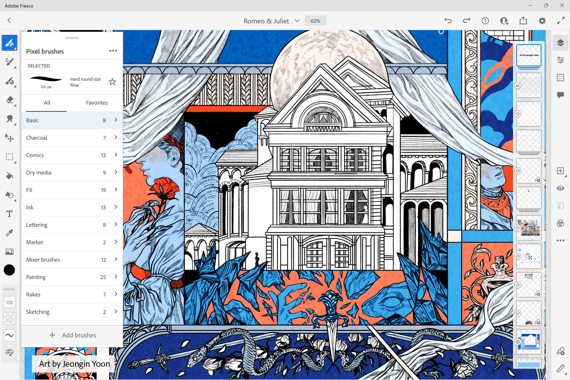
Fresco is a digital drawing and painting app that can be used for design. Artists can use a stylus with either the iPhone or iPad versions of the app to create highly detailed work. Tools like Symmetry and Paint Inside offer ways to make designs more precise and neat. Build on the concept using layers to deepen and refine the design.
Best for: Artists looking for a full suite of brush and painting options
Features:
- Animation and motion path tools
- Variety of eraser tools and styles
- Time-lapse video of process
Pros:
- Mimics a real drawing and painting experience with digital tools
- Integrates seamlessly with other Adobe products like Photoshop and Illustrator
Cons:
- Only available on the App Store
- Too advanced for younger kids
Pricing: Free

3. Snappa
Snappa is aimed at marketing professionals or people who need to quickly produce graphic design pieces without a lot of design knowledge. Users can play with templates and photos within the app, which are all completely free. Icon and vector options are available for any design, whether from a template or a blank page.
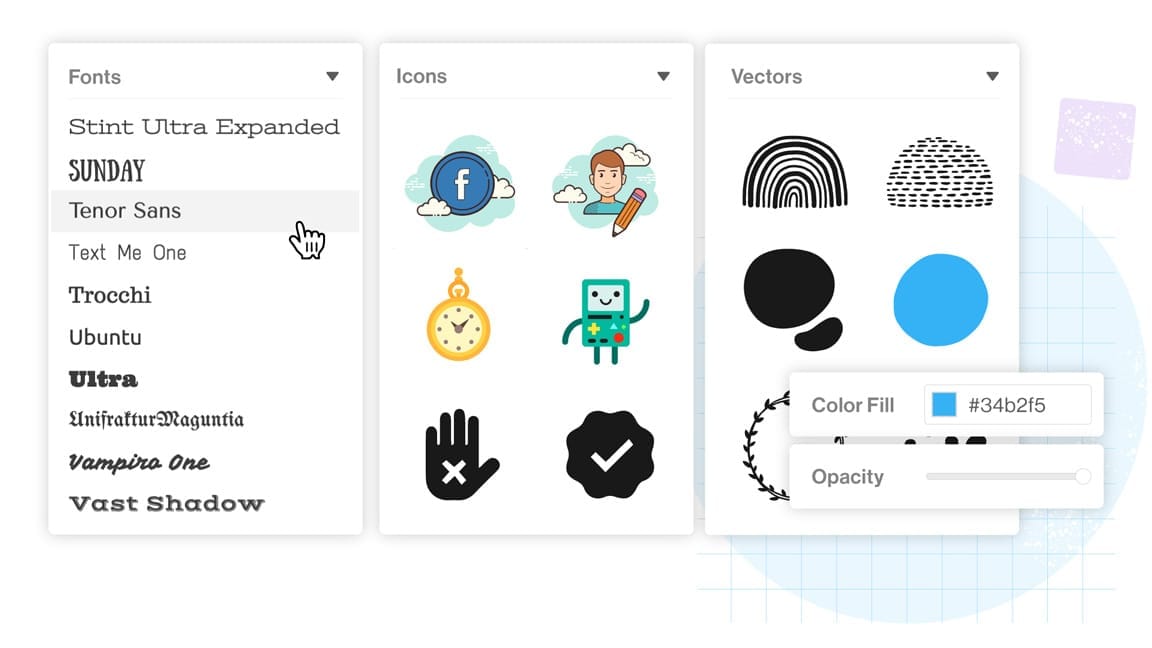
Best for: Advertisers and marketers looking for a simple graphic design program
Features:
- Large library of photos and templates
- Wide variety of fonts, graphics, and effects
- Variety of pre-set image dimensions
Pros:
- Simple to use
- No extra fees for certain photos
Cons:
- Only three downloads per month at the free level
- Geared toward marketing professionals
Pricing:
- Limited access: Free
- Pro: $10/mo (billed yearly)

4. VistaCreate
VistaCreate is a graphic design app used by businesses and social media creators for storytelling and branded content. Users can work from templates and royalty-free images to create designs for use in print and digital media. There are blank page options for free design that offer access to icons and shapes as well as different fonts, colors, and tools to create the look you want in your design.
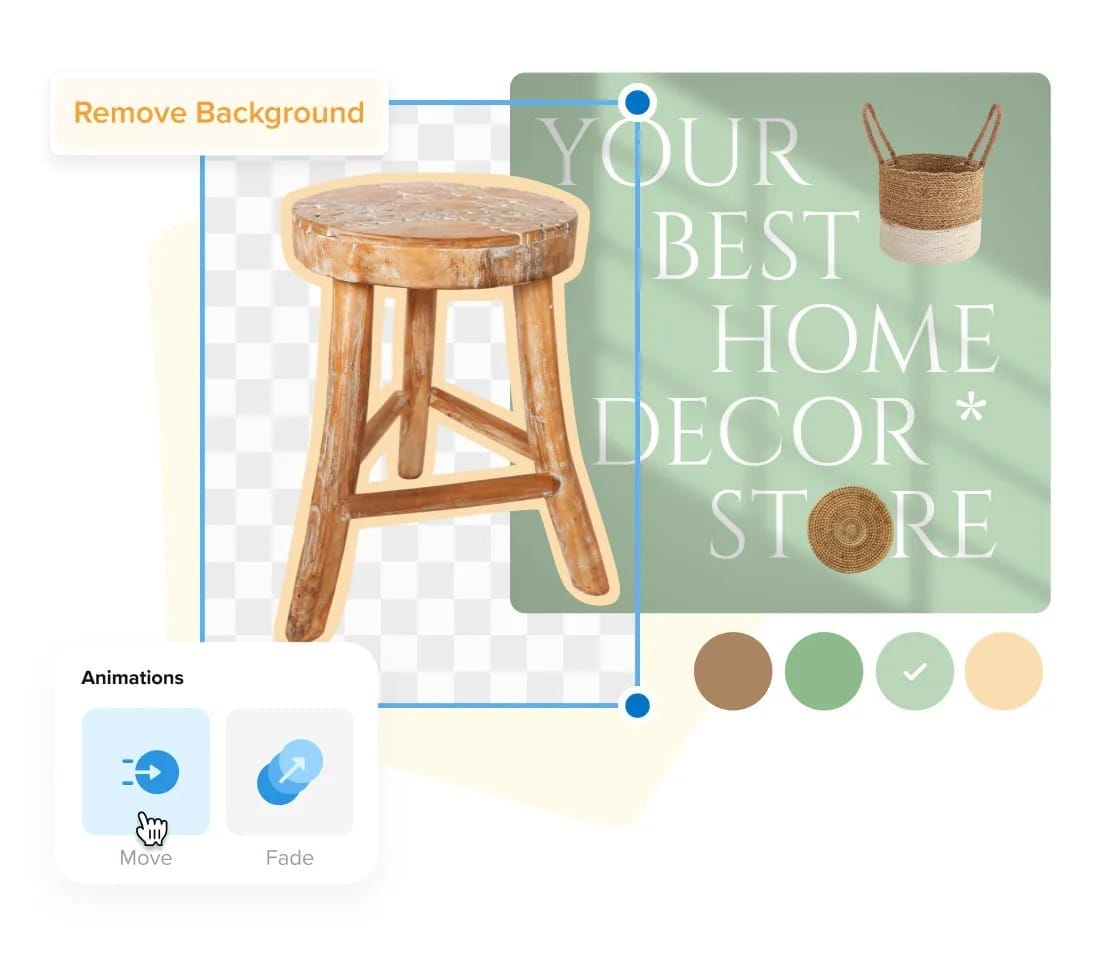
Best for: Marketing professionals
Features:
- Royalty-free image and template library
- Brand kit and styles tool
Pros:
- Offers more storage than other similar platforms at the free level
- Free option includes animation options
Cons:
- AI image generation is behind a paywall
- App is designed for marketing professionals rather than young audiences
Pricing:
- Starter: Free
- Pro: $10/month

5. Desygner
Desygner offers a large library of templates and style options to build designs. AI tools are available to work with photo, video, and text, and animation tools can be used to create motion from still images. Users can work from a blank page to craft their own work and download it when complete.
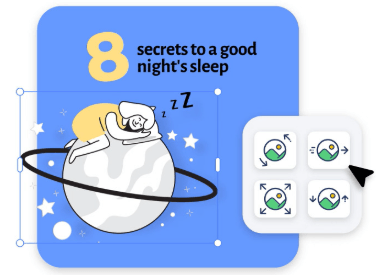
Best for: Business and marketing professionals
Features:
- PDF editor lets users adjust PDF files
- Brand library lets you create a style and save it for later
- AI-optimization options are available
Pros:
- Accessible on multiple platforms
- Large library of free templates
Cons:
- App is designed for social media and business professionals
- High level of detail may be difficult to use for younger users
Pricing:
- Basic: Free
- Pro+: $4.95/month or $59.40/year
6. Sketchbook
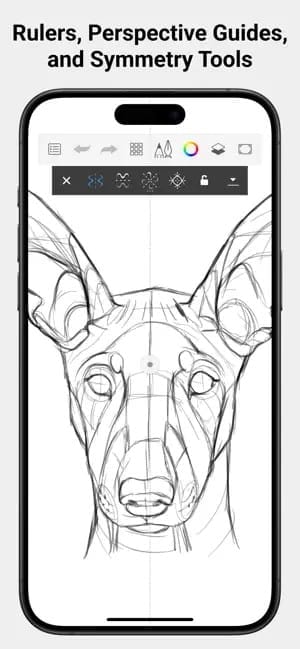
Sketchbook is a digital art platform for artists and designers focused on drawing and painting. Brush tools and color palettes are available to help artists customize their drawing in detail, and symmetry and fill tools can offer ways to enhance the precision in a given design. Artists can work with layers and other professional tools to get as much or as little detail as they like.
Best for: Digital artists who want a physical drawing experience
Features:
- Blank page drawing lets users hide away tools
- Layering tools help artists pick and choose what to highlight
- App is available on multiple platforms and devices
Pros:
- Predictive stroke tool can assist with precise line drawing
- Hundreds of brush tools are available for customizing designs
Cons:
- Some users report some technical glitches
- App has less of an emphasis on templates than others
Pricing:
- Mac/Microsoft Desktop: $24.99
- Mobile: Free with in-app purchases

7. Ibis Paint X
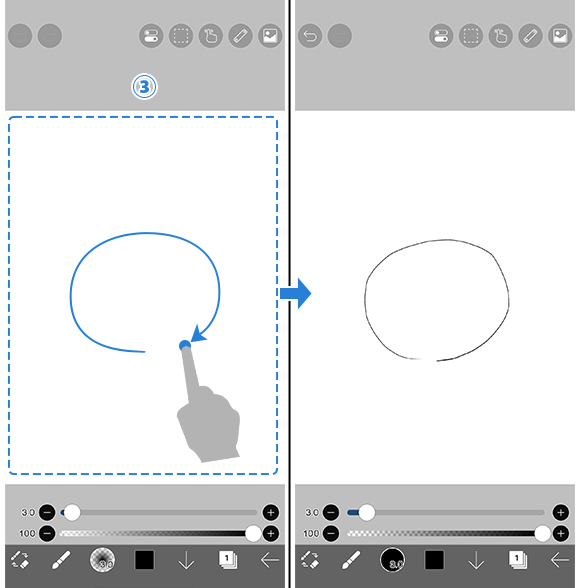
Ibis Paint X is a digital art tool and app that focuses on allowing manga artists to create and share their designs. Tutorials and videos can provide lessons for those interested in learning this specific style. The software is available on many platforms and offers users the option to upload their work and share it with the broader community.
Best for: Manga fans and artists
Features:
- Tutorial options for those who want to learn more about drawing
- 47,000 brushes available for color exploration
- Cartoon bubbles available for those who want to craft comic-style drawings
Pros:
- Education options available on the website and on the YouTube page
- Anime-specific tools available, such as frame divider and text input
Cons:
- App may be too narrow in focus for some users
- Community sharing features may be too advanced for young users
Pricing:
- Free with ads for phone and tablet users
- $4.49/month for Windows
- $27.99/year for Windows
- $4.99/month for Mac
- $29.99/year for Mac
- Pro add-on for Windows: $57.99 one off payment
- Pro add-on for Mac: $57.99 one off payment

8. SketchUp
SketchUp is a 3D design app geared toward architects, builders, and designers. While not a traditional drawing app, users can create scenes, buildings, and worlds within the platform. The software includes a 3D warehouse where users can add pre-built elements like furniture, cars, and other standard objects to their designs. Users can also create 3D models from real world images using point clouds.

Best for: Architects and students interested in learning 3D modeling
Features:
- 3D printing options let users print small models
- Chromebook compatibility allows for portability on a larger screen
- Student-centric pricing options available for younger users
Pros:
- 3D design option may be a good way for kids to explore a new art form
- Unlimited cloud storage lets you save as much as you like
Cons:
- Program is built for professionals and may be too advanced for young users
- Program limits users to 3D design with no basic drawing option
Pricing: Free for K-12 kids with a Google Workspace for Education or Microsoft Education account
Why creative play and design matters more than ever for kids
In an increasingly complex world, it’s clear that stress is affecting adults in new and unique ways. This stress can trickle down to our kids, who can pick up on our emotions and often understand more than we think. It’s never been a better time to teach them positive coping skills to relieve stress both now and as they grow.
Creative play relieves stress in kids allowing them to engage in a world that they control and they create, allowing them to let their imagination run wild as they design their own characters. Art is a key skill that can support them as a lifelong stress reducer, but there are so many more reasons to encourage creative play and design.
Creative play, art, and design also support the development of problem-solving skills. As kids work with different elements to create their design, they have to make decisions about color, texture, placement, and other elements to come up with their finished product. All of these have real world applications as they grow, and the best part is that they won’t even know they’re learning.
Working in the digital space is now the norm. For kids who show a real interest in art, taking their creative play and design interests into a space like an app teaches them both how to work within their favored craft and how to do so through the digital medium. This is fun for now, but later, they’ll be ahead of the game when employers ask them about their digital design skills.
How to choose the best design app
The best design app choice for your kids will be one that is appropriate for their age and skill level and is geared toward the experience you want to give them. Here are some considerations to keep in mind.
- Ease of use: For young kids, the app should be simple to access and use. It should be obvious what buttons to press and how to manipulate the platform to help kids create their art. For older kids, the app should be engaging and interesting, keeping their attention even if it’s more complex.
- Skill level: Little hands and beginner artists might need extra guidance or simpler mechanics in their design app. Older kids may have more capacity to learn more difficult elements depending on their interest level.
- App experience: Look for a fun and engaging app that unlocks creativity in kids of all ages. Gamified elements and in-app tutorials can help make an app experience great. Also consider things like ads and sharing options. Look for ad-free apps where possible for a smooth and uninterrupted experience for your kids. When community sharing is available, look for parental notifications and controls to make sure you have full say in what your kids share with the broader art community online.
- Purpose: Ensure that the app you’re using matches the reason you’re allowing your kids to use the app. If you have a skill you want to teach, like drawing, consider apps that help kids practice that skill. Design apps can have a multitude of functions and be aimed at different skill levels, so make sure you’re choosing the one that fits your kids’ needs.
- Device and platform compatibility: Not all apps work on every platform. Before getting excited about a specific app, make sure it will work on your device. Many small and independent apps are only available on the Apple Store, but there are lots of options available across devices. Also consider the art experience you want for your kids. Using a phone screen with their fingers is a much different art experience than using a tablet with a stylus. Consider which is optimal within your lifestyle and budget.
What makes a design app fun vs. just functional
There are a number of design apps out there, particularly those geared toward design professionals, that offer great tools, but they may not all be truly fun for kids. When you’re looking for an app that will be fun, consider elements like games and themes over apps structured with templates and professional design in mind.
Games are a great way to keep kids engaged and having a good time. Some games, like the pass and play options in Aqua by Adobe, let kids play together, not just by themselves. These are fun on their surface, but they may serve multiple purposes. In pass and play games, multiple people draw parts of an object, teaching kids about layers and style as they see how tough it can be to work with different parts toward a single whole.
Themes also help give kids a framework for their experience in the app. Some apps feature characters from known IPs or accessible topics like fashion or animals. Whether the app has a single theme or several different themes to choose from, kids can get excited about traveling to a specific world with their art.
Apps geared more toward professionals choose function over excitement. These apps may offer many templates and choices, but they tend toward professional themes to help adults with things like advertising or event promotion. Other apps may be geared more toward free design, but the functionality may be too complex for little minds. Consider opting for an app designed just for kids when choosing what experience to provide for your family.
Download a free design app and turn screen time into creative time
Screens are part of everyday life, and as parents, the trick is to make screen time meaningful whenever possible. The right free design app can make screen time into an active educational experience, giving kids the chance to imagine, experiment, and express themselves in creative ways that simultaneously build real-world skills.
Aqua by Adobe stands out among this list for putting creativity, safety, and play at the center of the experience. It’s a space where kids aren’t just learning the basics of design—they’re playing with color, learning how to draw, and engaging with the creative process in an environment designed just for them.
If you’re looking for a way to transform screen time into something more purposeful, start with a tool made just for kids. Explore Aqua by Adobe and send your kids into a world chock full of creative adventures.
Download the Aqua by Adobe app today and give your kids a fun space to bring their ideas to life.
Free design app resources
What is the best free design app?
The best free design app is one that your kids are excited to use. The app should be engaging and fun as well as compatible with your tech. It should be at your kids’ level and designed to encourage creative play. Aqua by Adobe aligns with all of these needs and may be the right fit for most parents of kids aged 5-12.
Can I print designs created with free design apps?
Yes, some apps do offer printer compatibility. This is a great way to showcase the designs your kids create on their wall or on the fridge. It also makes it easy to give designs away – your kids can design their own holiday cards and give them to all of their family and friends.
Where can I design things for free?
There are many apps in this list that offer free apps with design capabilities, though most will show ads. Typically, these types of apps offer paid versions to remove ads and offer additional functionality. Aqua by Adobe is unique in that it is free and does not have ads. Some in-app purchases can enhance the experience of the app, but they are completely optional.
Are free design apps safe for kids?
As a parent, you should always keep a close eye on any app your child uses. Some apps that have ads may show content geared toward adults, even if the app is likely to be used by children. Consider parental controls and time limits, particularly with apps geared toward adult users that also work for kids.
Aqua by Adobe is designed specifically with kids in mind to give them a safe experience in collaboration with you, the parent. The app will prompt kids to get a grown up any time they try to do something they need extra approval for, and you can set notifications to let you know when they interact in certain ways within the app. It’s designed especially as a safe place for them to play and be creative.