



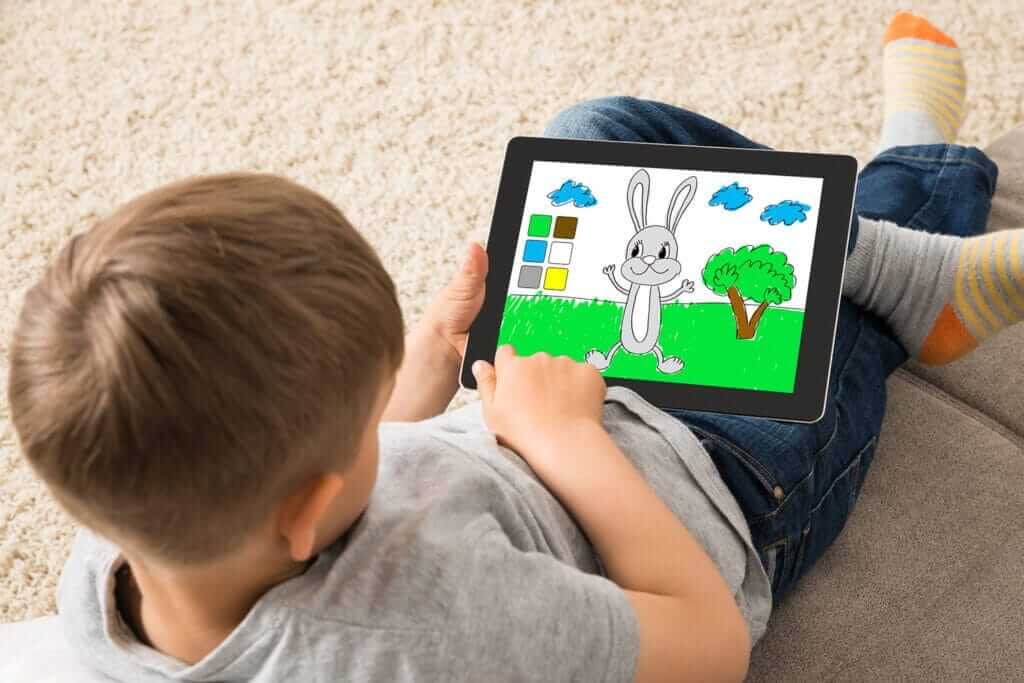
Long car rides, waiting rooms, airport gates, and restaurant tables all have one thing in common: Dids run out of things to do quickly. Parents often reach for books or videos, but not every quiet activity helps kids reset when they’re restless or overwhelmed.
Research suggests that hands-on activities like drawing can help improve children’s emotional state during times like these, especially when used as a focused, creative distraction. In one study of children ages 7 through 8, emotional states improved after drawing, while reading alone didn’t show the same effect. The difference wasn’t simply “doing something”—it was the type of activity that mattered.
That’s why more and more parents are turning to drawing apps for kids. They give children something active to focus on, so instead of scrolling or passively watching TV, they’re choosing colors, making decisions, and building something of their own.
This guide highlights the best free drawing apps that are simple to use, safe for kids, and ready whenever you need them. Whether you’re planning ahead for travel or just trying to survive a long wait, you’ll find options that turn idle time into creative time.
Best free drawing apps
We selected these free drawing apps based on ease of use, tool variety, device compatibility, and whether they truly offer meaningful features without requiring subscriptions. Our focus was on apps that support creative exploration while remaining accessible for families and everyday use.
1. Aqua by Adobe
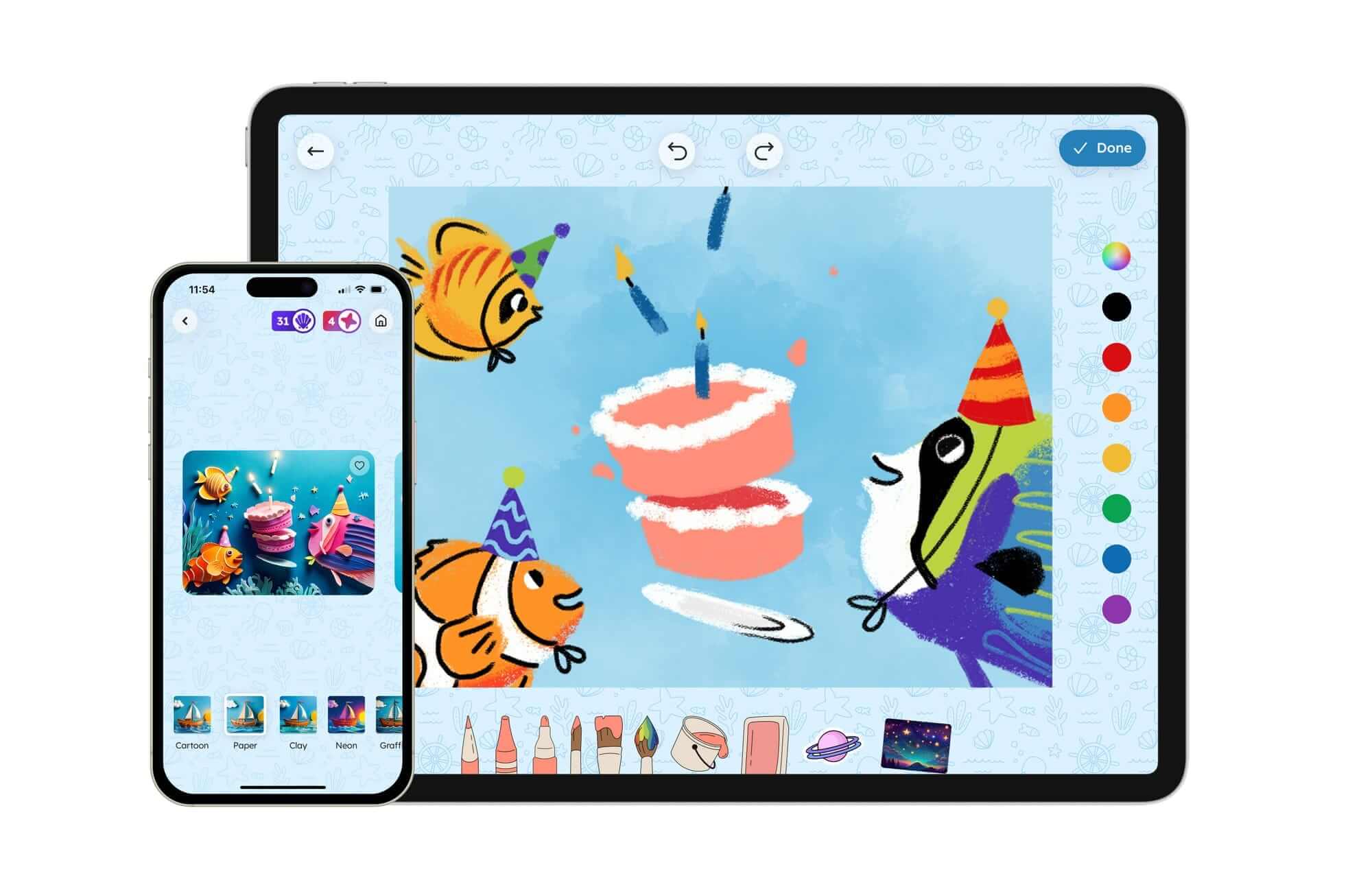
Aqua by Adobe is a free creativity app designed specifically for kids ages 5 through 12. It focuses on making drawing feel approachable from the first tap, while still giving kids enough room to explore different ideas over time.
Inside the app, children can choose from printable coloring pages, guided art activities, and simple drawing challenges that help them begin without hesitation. They can switch between pen and pencil tools for outlining, paintbrushes for filling larger areas, and special effect brushes to add decorative patterns with a single stroke. For kids who struggle with “what do I draw?”, Bloop & Blob play starts with broad shapes and helps them turn those shapes into characters or objects step by step.
Aqua also connects digital drawing with hands-on art. Parents can download pages as PDFs to print at home. After coloring with crayons or markers, kids can take a photo of their artwork and bring it back into the app to continue working on it. From there, they can add a background, experiment with visual style changes, or transform their drawing into a 3D version they can view through the camera.
Instead of disappearing into a camera roll, finished artwork is stored inside the app in a personal collection. Kids can scroll through what they’ve made, revisit older drawings, and keep building on ideas over time.
The app is completely free and doesn’t include ads or in-app purchases, meaning parents can hand over a device without worrying about surprise pop-ups or locked features. It’s a perfectly well-rounded option for families who want something creative, flexible, and dependable.
Best for: Simple drawing tools that grow with your child, making it just as useful for quick creative breaks as it is for longer drawing sessions
Available on: iPadOS and iOS
Pricing: Free

2. Fresco
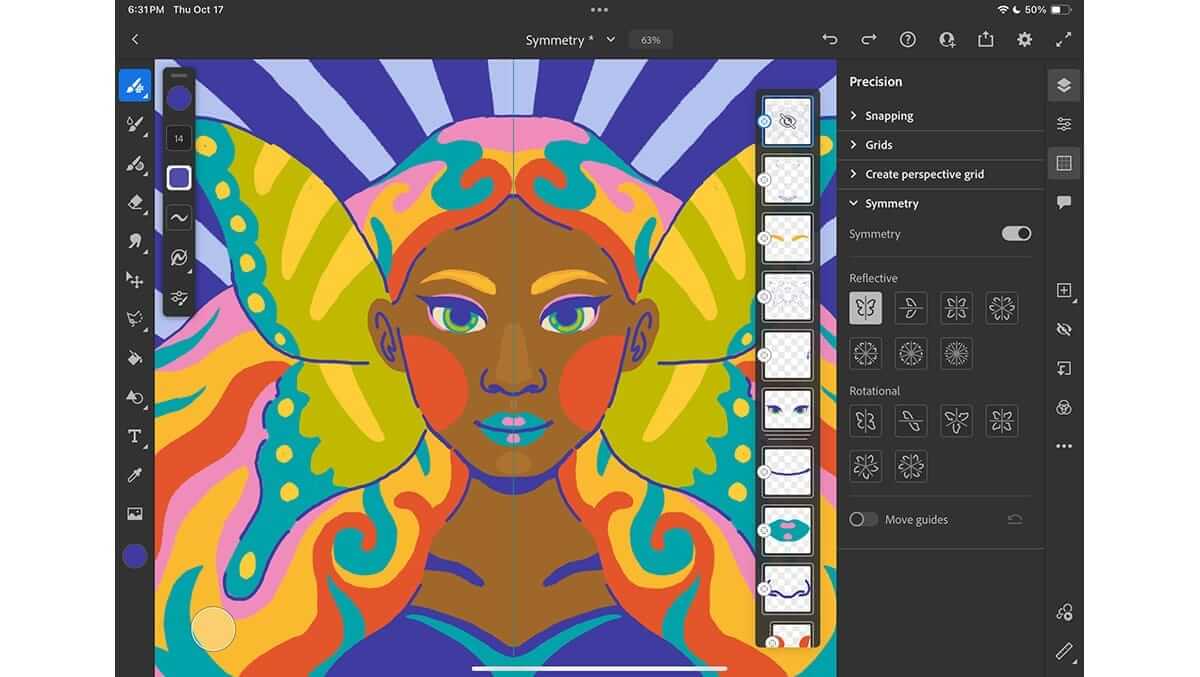
Adobe Fresco is a free painting and drawing app made for users who want professional-level tools on a tablet or phone. It includes multiple brushes, including raster brushes that mimic real paint and ink, vector brushes that scale without losing quality, and live brushes that blend and bloom like traditional media.
The app supports sketching, detailed illustration work, and even animation. Users can create frame-by-frame animations, draw motion paths, or apply preset movements to make drawings bounce or spin. Features like symmetry tools, paint-inside controls, vector trimming, and unlimited layers give artists more flexibility as they build their work.
Fresco is built for stylus and touch devices like iPad and iPhone, and artwork can sync with desktop programs such as Photoshop and Illustrator. Due to its range of brushes and advanced editing tools, Fresco is often geared toward older kids, teens, and adults who want more control over their artwork.
Best forProfessional painting and animation tools within a free mobile app
Available on: iPadOS and iOS
Pricing: Free
3. Sketchbook
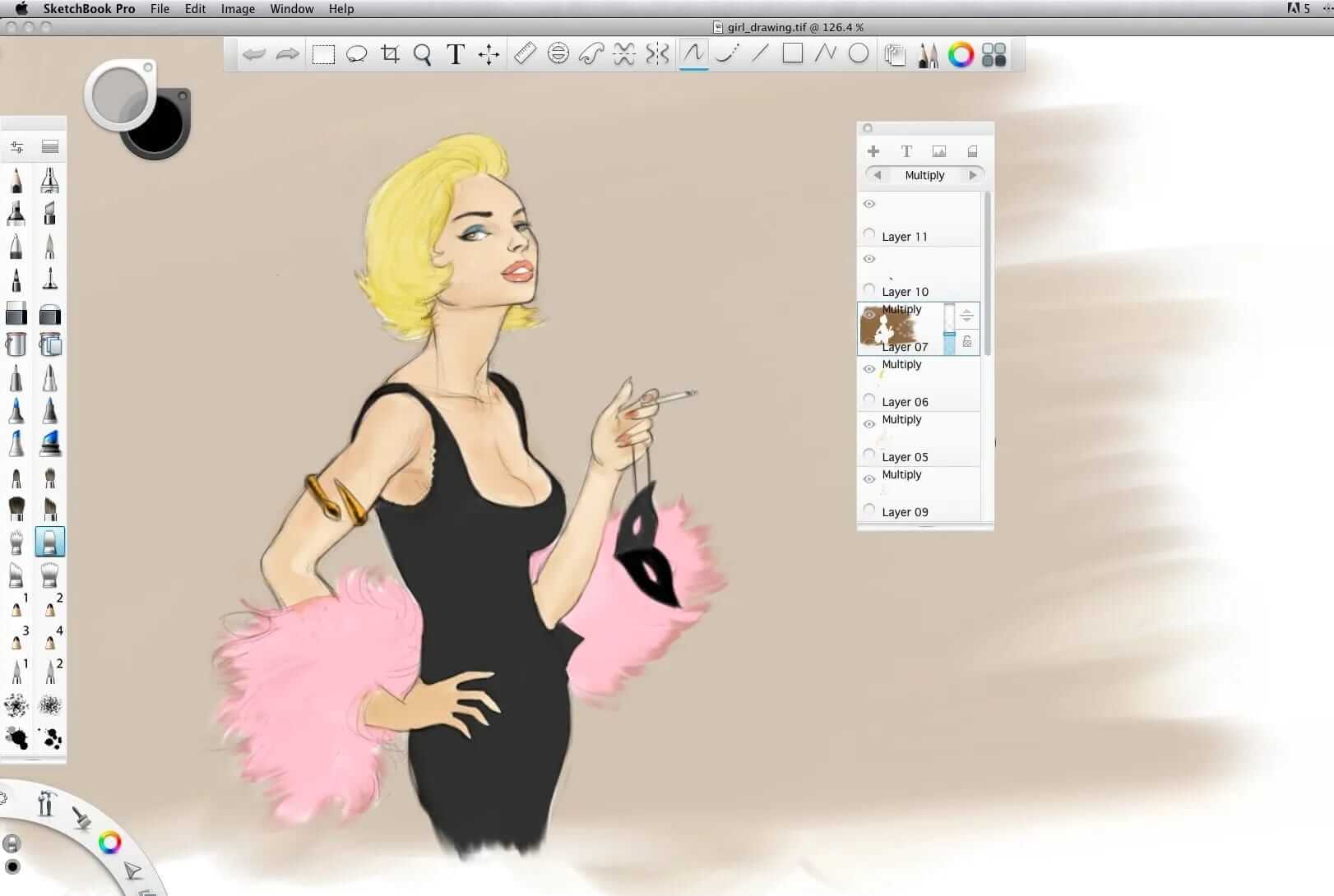
Sketchbook is a drawing app built to feel as close to paper as possible. Its interface is minimal, allowing artists to focus on sketching without distraction. Tools and palettes can be hidden while drawing, which helps keep the workspace uncluttered.
The app includes different customizable brushes like pencils, markers, airbrushes, and paint tools. Users can adjust brushes to create different textures and effects. Layers, blend modes, and color fill tools allow for more detailed artwork, while rulers, symmetry tools, and predictive stroke features help maintain clean lines.
The app supports stylus input and responds to pressure and tilt, which can make the drawing experience feel more natural for users with compatible devices. Sketchbook targets older kids, teens, and adults—younger children may need some guidance navigating the interface at first.
Best fort:Clean drawing environments with customizable brushes and precision tools
Available on: macOS, Windows, iOS, and Android
Pricing:
- iOS/Android: Free
- Mac: 24.99
4. HiPaint
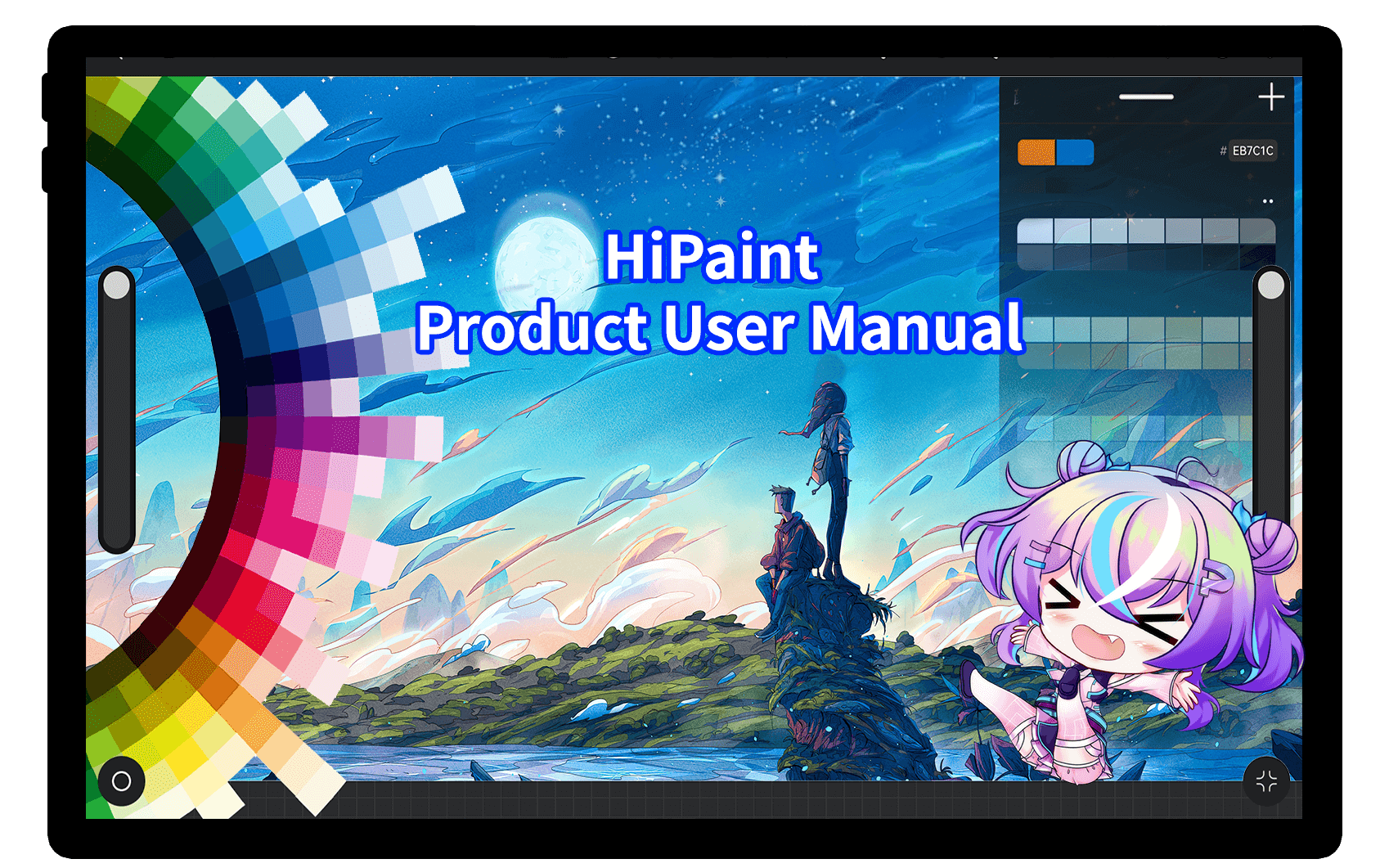
HiPaint is a digital drawing and coloring app with advanced tools for mobile users. It includes a selection of built-in brushes along with adjustable brush settings such as size, hardness, and transparency. Users can fine-tune these settings to match their preferred drawing style.
The app supports layer editing, including blending modes, masking, merging, and grouping. It allows for detailed projects with multiple layers and more complex compositions. HiPaint also includes color customization tools, letting users create and save palettes for consistent use across projects.
In addition to standard drawing tools, HiPaint offers filters for post-processing, such as color balance, curves, and liquefy adjustments. It also includes animation tools, with frame controls and onion skin features for creating motion-based artwork.
Best for: Professional-style drawing, layering, and animation tools on a mobile device
Available on: iOS and Android
Pricing: Free with in-app purchases
5. Ibis Paint X
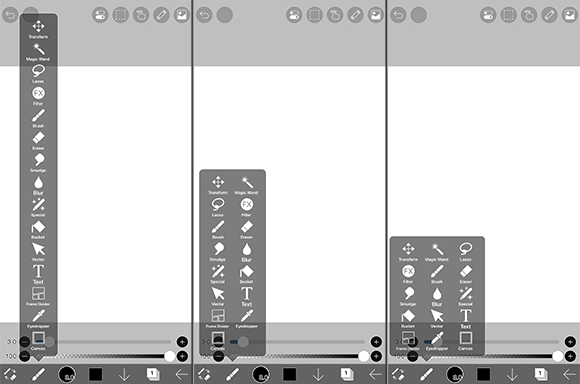
ibis Paint X is a drawing app known for its large brush library and detailed editing tools. It includes several brush types, including pens, dip pens, airbrushes, and special effect brushes. Users can adjust brush settings and work with multiple layers to build more complex artwork.
The app supports features such as blending modes, clipping masks, selection tools, and stroke stabilization. ibis Paint also includes a drawing process recording feature, allowing users to replay how they created their artwork.
Because of its depth and customization options, ibis Paint is often used by older kids, teens, and hobby artists who want more control over their work. While it’s free to download, the app includes in-app purchases and advertisements unless upgraded.
Best for: Simple brushes and detailed editing tools in a mobile drawing app
Available on: iOS and Android
Pricing: Free with in-app purchases
6. Medibang Paint
MediBang Paint is a digital art app commonly used for comic and manga-style illustration. It includes various brushes and screentones, giving users options for inking, shading, and coloring. The brushes are customizable, allowing artists to adjust settings depending on whether they’re sketching lightly or creating bold linework.
Users can scan or import hand-drawn sketches and continue refining or coloring them digitally. With its Group Project feature, multiple users can share files and work on the same comic or illustration.
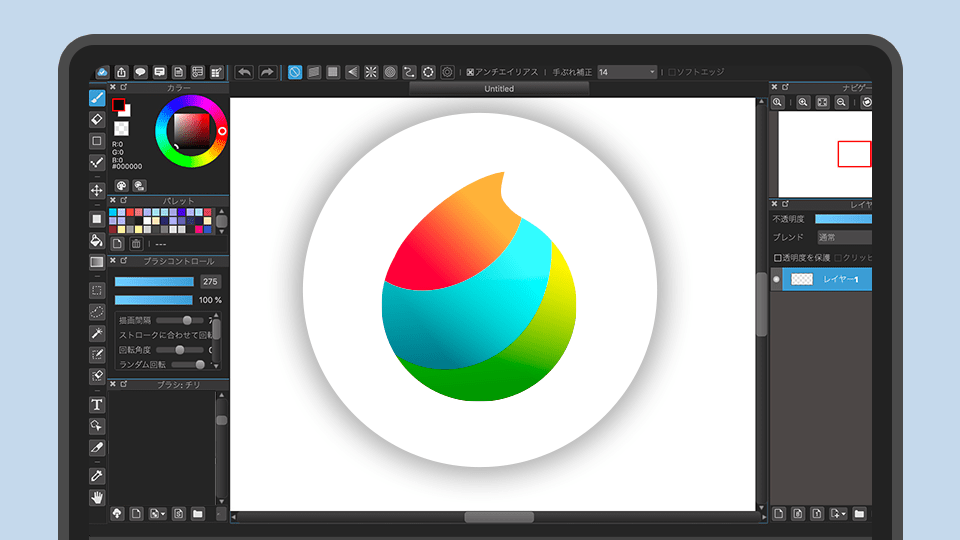
Best for: Comic-focused tools with multi-device syncing and collaboration features
Available on: iOS, Android, Windows, and macOS
Pricing: $15.58/year
7. Krita
Krita is a free, open-source digital painting and animation program built primarily for desktop use but also available for Android. Artists use Krita for illustration, comics, concept art, and even 2D animation. The software comes preloaded with professional brush presets and each brush can be customized through multiple brush engines. Stroke stabilizers help smooth out lines, while advanced assistants guide perspective, symmetry, and shape construction.
For comic creators, Krita includes vector tools for speech bubbles and panels. For animators, it offers a dedicated timeline workspace with onion skinning, frame controls, and audio support. Projects can scale from simple sketches to complex, multi-layered compositions with blending modes, masking, and file layer management.
Krita also integrates into broader creative workflows. It supports PSD files, HDR painting, GPU acceleration, and detailed color management settings for artists who work across multiple programs.
For families looking for a quick-start, touch-friendly drawing experience on a tablet or phone, it may feel more technical than necessary.
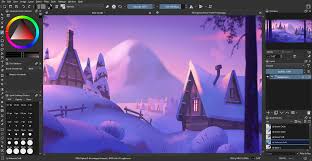
Best for: Studio-level painting and animation tools with no subscription required
Available on: Windows, macOS, and Linux
Pricing: Free
8. Linearity Curve (Vectornator)
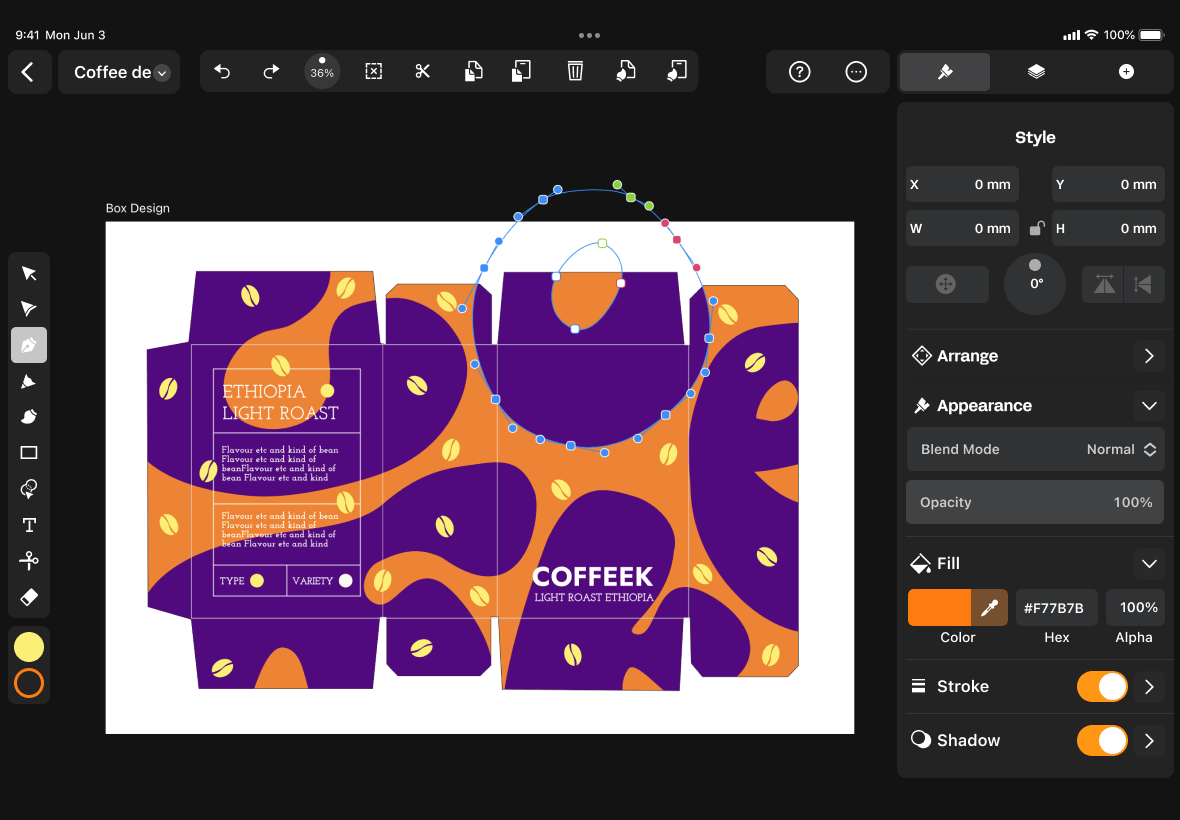
Linearity Curve is a vector design app geared toward illustrators and graphic designers. Unlike traditional sketching apps that focus on raster drawing, Curve works with vector paths, which means artwork can be resized without losing quality.
The app includes tools such as the Pen tool, Node tool, Shape Builder, and Smart Shapes for constructing adjustable designs. Users can refine curves, control anchor points, and apply non-destructive vector effects like shadows and blurs. Advanced gradient controls and detailed color inputs, including hex and CMYK support, make it suitable for branding and print projects.
Linearity Curve also includes background removal tools, AI-assisted object selection, and image vectorization features that convert photos or sketches into editable vector paths. Text tools allow for full typographic control, including kerning adjustments and text-on-path styling.
Linearity Curve supports syncing between devices and exporting in professional formats like PDF, SVG, and EPS. It also integrates with other design ecosystems through file compatibility with tools such as Illustrator and Figma.

9. Kleki
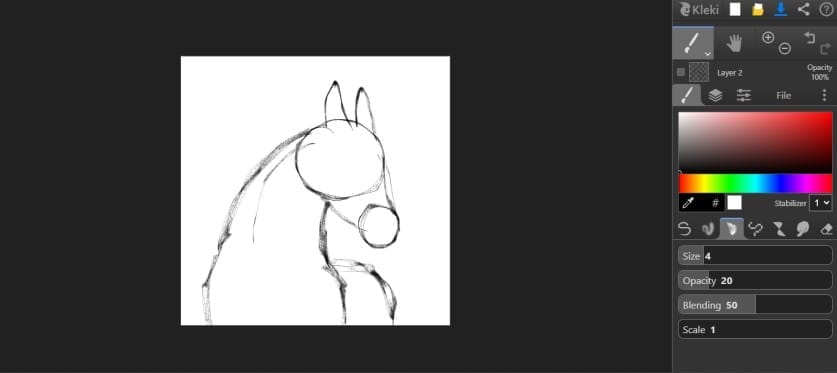
Kleki is a browser-based drawing tool designed for quick sketching. Instead of downloading an app, users can open it in a web browser and begin drawing immediately.
The interface includes essential tools such as pens, fill, shapes, text, filters, and basic editing controls. Users can work with up to 16 layers and apply blend modes like multiply and screen. Pressure-sensitive stylus support is available, along with touch gestures such as pinch-to-zoom and tap-to-undo.
Kleki also includes line extraction, resizing and perspective tools, blur and color adjustments, and browser-based storage that remembers artwork between sessions. As an open-source project, Kleki is community-supported and ad-free.
What makes a free drawing app good?
A good free drawing app does two things at the same time. It feels easy enough that a child can start using it right away, and it has enough variety that they don’t get bored after five minutes.
If the app feels confusing, kids won’t be engaged, but if it feels too basic, they finish one drawing and ask for something else. The best free options hit that middle ground of simple enough to start, but developed enough to keep coming back.
Here’s what to look for when you’re choosing a free drawing app:
- It helps kids start without staring at a blank screen: Some kids love a blank canvas, but a lot don’t. A strong drawing app gives kids a starting point so they can jump in fast with things like printable coloring pages, simple prompts, step-by-step activities, or quick drawing games. This way they spend their time drawing instead of saying, “I don’t know what to make.”
- The tools feel natural for small hands: A good kid-friendly app doesn’t require a lengthy tutorial. The tools rely on familiar pens, pencils, and paintbrushes that behave the way a child expects. It also helps when buttons are big, menus stay simple, and kids don’t have to hunt through settings to change a color or undo a mistake. If your child can pick it up and start drawing within a minute, you’re in a good place.
- It offers more than one “mode” of creativity: Most kids don’t want to do the same thing every time. Some days they want to color. Other days they want to draw a character. Sometimes they want a quick challenge. The best drawing apps support different moods, like coloring pages for low-effort play, free draw for imagination and experimentation, or prompts or games for kids who need help getting started
- It makes drawings feel “new” without making kids start over: One reason kids drop drawing apps is that every drawing feels like the same process: draw, color, done. Strong apps give kids ways to transform what they already made, like changing the look of a drawing, adding textures, or applying a fun style with a tap. That keeps kids drawing longer because one picture can turn into a few different versions instead of being a one-and-done activity.
- It supports storytelling, not just coloring: Even if your child isn’t “a little artist,” many kids naturally think in stories. They draw a character and then want a place to put it. Apps that include background scenes or spaces to build on help kids turn a single drawing into something bigger. Instead of leaving a character floating on a blank page, they can place it into a setting and add small details around it.
- It saves work in a way kids can actually use: Kids care about what they make. They want to show it, revisit it, and keep it. A good drawing app makes saving simple and keeps artwork organized, almost like a personal folder or gallery where kids can see what they’ve done over time. It also avoids piles of paper after the activity is over.
- It’s truly free, not “free until you click something”: A lot of apps say they’re free, then hit you with ads, locked features, or constant subscription pop-ups. For parents, that’s more than annoying—it’s a trust issue. The best free drawing apps are clear about what’s included, don’t push kids toward payments, and don’t interrupt play with ads or surprise screens.
Best free drawing app features
When you’re choosing a free drawing app, the tools inside it matter just as much as the price. The right features make it easy for kids to start drawing, get their creativity flowing, and come back to the app again and again. A strong drawing app doesn’t overwhelm kids with complicated menus, but it also doesn’t limit them to one basic brush.
Consider the following features:
- Pen and pencil styles: Basic tools that feel natural and easy to control. Kids should be able to outline characters, add small details, and sketch freely without struggling with settings.
- Paintbrushes: Broader brushes that make coloring faster and smoother. These help fill in clothing, backgrounds, or large shapes without needing to color every line by hand.
- Special effects brushes: Brushes that create patterns like stars, dots, leaves, or textured trails as kids draw. These keep drawings feeling fresh and help kids decorate without advanced skills.
- Bloop & Blob play: Tools that start with big shapes and allow kids to refine them into characters or objects. This helps children who don’t know where to begin by giving them a base layer to inspire creativity.
- Background scenes: Pre-drawn settings where kids can place their drawings. Instead of leaving a character on a blank page, they can build a full picture by adding details around it.
What Redditors say about free drawing apps
Across Reddit discussions about free drawing apps, users often say that the best option depends on experience level and device. In one thread about beginner-friendly tools, commenters highlighted apps with large brush libraries and tutorials because they make it easier to learn without feeling overwhelmed.
In conversations about iPad drawing apps, some users mentioned starting with simple free tools before moving to more advanced software later. Free sketching apps are often described as reliable tools that help people practice regularly without needing to commit to paid programs right away.
Redditors also point out that browser-based drawing tools can be useful when someone wants to sketch quickly with no downloads or setup. One user recommended a web drawing app specifically because it lets people “start drawing right away,” making it easier to experiment casually.
Overall, the common theme across these discussions is that free drawing apps are most appreciated when they feel easy to start, responsive to use, and flexible enough to grow with a person’s skills over time.
Use a free drawing app to encourage joyful creation
A free drawing app can turn small pockets of time into something creative and calming. Whether your child prefers coloring pages, sketching characters, experimenting with brushes, or building simple scenes, the right app gives them space to explore without pressure. Instead of passive screen time, they’re making choices, solving creative problems, and seeing their ideas take shape.
If you’re looking for an option designed specifically with kids and families in mind, choose Aqua by Adobe. It brings together drawing ideas, simple games, easy-to-use tools, and a safe, ad-free experience in one place. It’s a simple way to support creativity wherever the day takes you.
Free drawing apps resources
Can you use coloring pages in drawing apps?
Yes, many drawing apps include coloring pages that kids can fill in directly on the screen. Instead of starting from a blank canvas, children can choose a design, pick colors, and begin right away. This is helpful on the go, when kids may not know what to draw but still want something creative to do.
Some drawing apps also allow parents to download and print coloring pages for paper use. In apps like Aqua by Adobe, kids can even take a photo of their finished paper coloring page and upload it back into the app to keep working on it digitally. This makes it easy to move between crayons at the kitchen table and drawing tools on a tablet.
Can I download or save drawings on a free drawing app
Most free drawing apps allow you to save finished artwork, but how that works can vary. Some apps save drawings directly to your device’s camera roll, while others organize them inside the app in a personal gallery or collection.
For example, Aqua by Adobe allows kids to store and showcase their creations inside the Aqua Museum. It’s a customizable digital space where their artwork can grow into a personal portfolio they can show to friends and family.
Having an organized place to store drawings makes it easier for kids to return to past ideas and see their creative progress over time. A strong app makes saving and sharing simple, without requiring subscriptions or locking basic features behind paywalls.
What is the best drawing app for free?
The best free drawing app depends on who is using it and where they plan to use it. Many parents looking for something safe, easy to start, and suitable for travel or waiting rooms choose Aqua by Adobe. It offers coloring pages, simple drawing tools, creative prompts, and a way to save artwork without ads or in-app purchases.